

In a digitally connected world, the ability to send your location in real time has become extremely useful — whether you meet a friend, wait for a taxi or want to be quickly found in an emergency. In this article, we explain what „share location” means, how it works and how you can use this function simply and efficiently, directly from your phone.
What is share location and how it works
Share location means sending your current location to someone else using your phone’s GPS. It is a useful function when you want someone to know where you are or find you easier.
Your phone uses GPS to detect the exact position. Then, through an app like WhatsApp, Google Maps or Facebook Messenger, you can send this location in real time. The person receiving your location will see where you are on the map.
You can choose to send only your current location, once, or enable real-time sharing, in which case your phone will automatically update your location for a chosen period (for example, 15 minutes, an hour, or until you manually turn off the feature).
Cum sa dai share location în Google Maps
To share location in Google Maps, follow the steps below:
- Open the Google Maps app on your phone.
- Click on your profile picture (top right corner).
- Choose option „Share location” (Location sharing).
- Press the „button Share location” (Share location).
- Select:
- How much time do you want to share your location (ex: 1 hour or until you disable manually).
- The person you want to share (from your Google contacts) or click „Copy the” link to send the location to other apps (WhatsApp, SMS, etc.).
That person will receive a link that shows them on the map where you are in real time.
How to send your location on WhatsApp
The “Share Location” feature allows you to share your current or real-time location with a contact or group from WhatsApp. There are two main options:
- Send your current location: Share a static location, representing where you are at the time.
- Share your live location: Allow real-time sharing of your movements for a selected period (15 minutes, 1 hour or 8 hours).
How to share location on WhatsApp
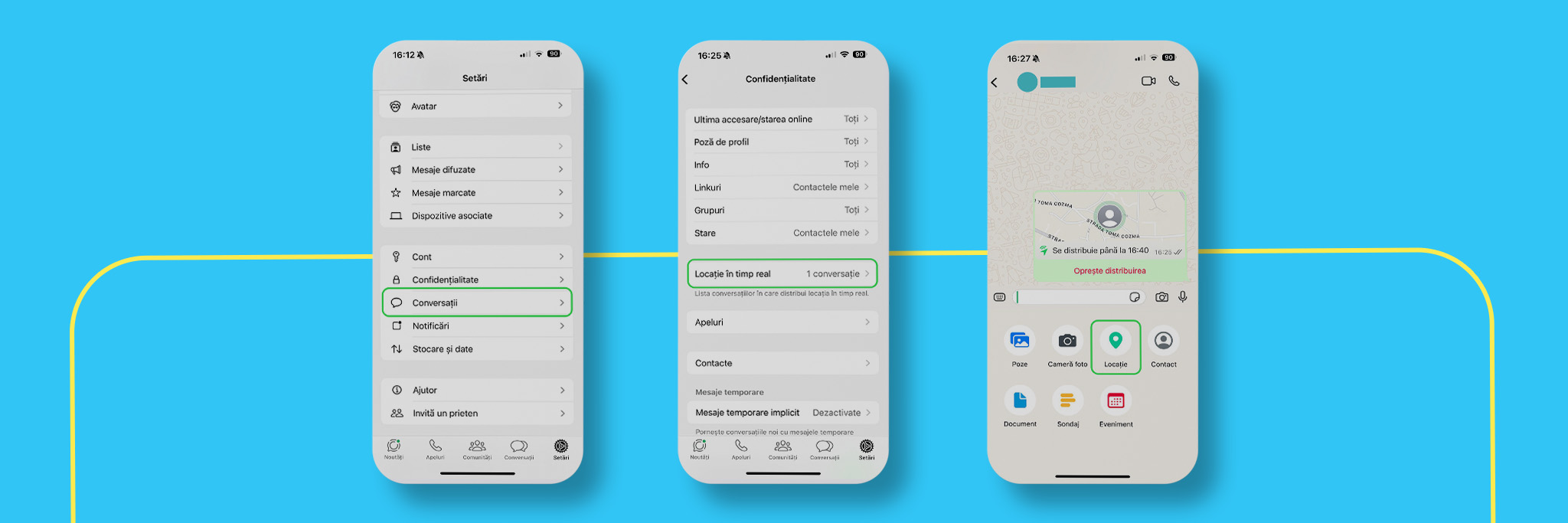
To use the location sharing feature, follow the steps below:
- Allows location access for WhatsApp:
- On Android devices:
- Go to Settings > Apps & notifications > WhatsApp > Permissions > Location & select “Allow”.
- On iOS devices:
- Go to Settings > Privacy > Location Services > WhatsApp and choose “While using the app”.
- Open the conversation you want in WhatsApp:
- Select the contact or group you want to share your location with.
- Go to location sharing option:
- Click on the “Attach” icon (graph symbol) in the chat bar.
- Choose the “Location” option.
- Select the type of location to share:
- To send your current location:
- Press “Send current location”.
- To share your location in real time:
- Select “Share live location”.
- Choose the duration for which you want to share your location (15 minutes, 1 hour or 8 hours).
- Optionally, you can add a comment.
- Press “send.”
How to stop sharing your live location
You can stop sharing your location in real time at any time:
- In the conversation where you share your location, click “Stop sharing”.
- Confirm by choosing “Stop”.
Data security and confidentiality
WhatsApp uses end-to-end encryption for all shared messages and data, including your location. Thus, only you and the person or group with whom you share your location can see that information.
WhatsApp location sharing is a valuable tool for coordinating meetings and ensuring personal safety. By following the above steps, you can quickly and easily share your location with friends and family. Make sure that you manage the appropriate location permissions and stop sharing when it is no longer needed
How to send your location on Facebook Messenger
To send your location to Facebook Messenger, follow these simple steps:
- Open the conversation with the person you want to send your location to.
- Click on the „+” icon or the four-point button (depending on the phone).
- Select option „Location” (Location).
- Allow the app access to your location if it asks.
- You can:
- Send your current location (a fixed point on the map).
- Or enable real-time sharing for 60 minutes so that the person sees how you move.
Click Send and ready — the person will receive your location directly in the chat.
Frequently asked questions about share location:
Do I need wi-fi if I want to share location?
No, you don’t necessarily need Wi-Fi to share location. The function uses your phone’s GPS to detect your location, and sending the location is done via the internet — either Wi-Fi or mobile data.
So if you’re not connected to a Wi-Fi network, you can use your mobile data to send the location without any problems.
Sending the location in real time consumes a lot of battery?
Yes, sending the location in real time can consume more battery than sending a static location. This is because your phone uses GPS constantly and keeps your internet connection to update your position in real time.
However, consumption is not particularly high in the short term. If you leave sharing active for a long time (more hours), the battery will discharge faster. To save energy, it is recommended to stop sharing when it is no longer necessary.
Can I send a place other than where I am?
Yes, it can also send a different place than the one you are in. Most of the apps that allow you to send the location, such as Google Maps or Facebook Messenger, give you the option to manually choose a point on the map.
All you have to do is:
- In Google Maps: search for the desired place or click on the map where you want to send, then select „Share” (Share).
- In Messenger: when you open the map, you can move the pin or search for a different location in the search bar, then send it.
It is useful when you want to show a meeting place, an address or a point of interest, without necessarily being your current position.
What do I do if the share location function does not work?
If the location sharing feature doesn’t work, check if the GPS is on and if the app has permission to access the location. Make sure you have an internet connection and the app is up to date.
You can try restarting your phone or turning off battery-saving mode, which can affect your GPS. If the problem remains, try another app to see if it works.
How long does share location stay active in real time?
The duration for which share location remains active in real time depends on the application and settings you choose. You can usually choose to share the location for a few minutes, hours, or until you manually turn off the feature.
For example, in Google Maps you can set sharing for 15 minutes, an hour or more, and in other apps the duration may vary. If you do not stop manually, in some cases the sharing ends automatically after a set time.