

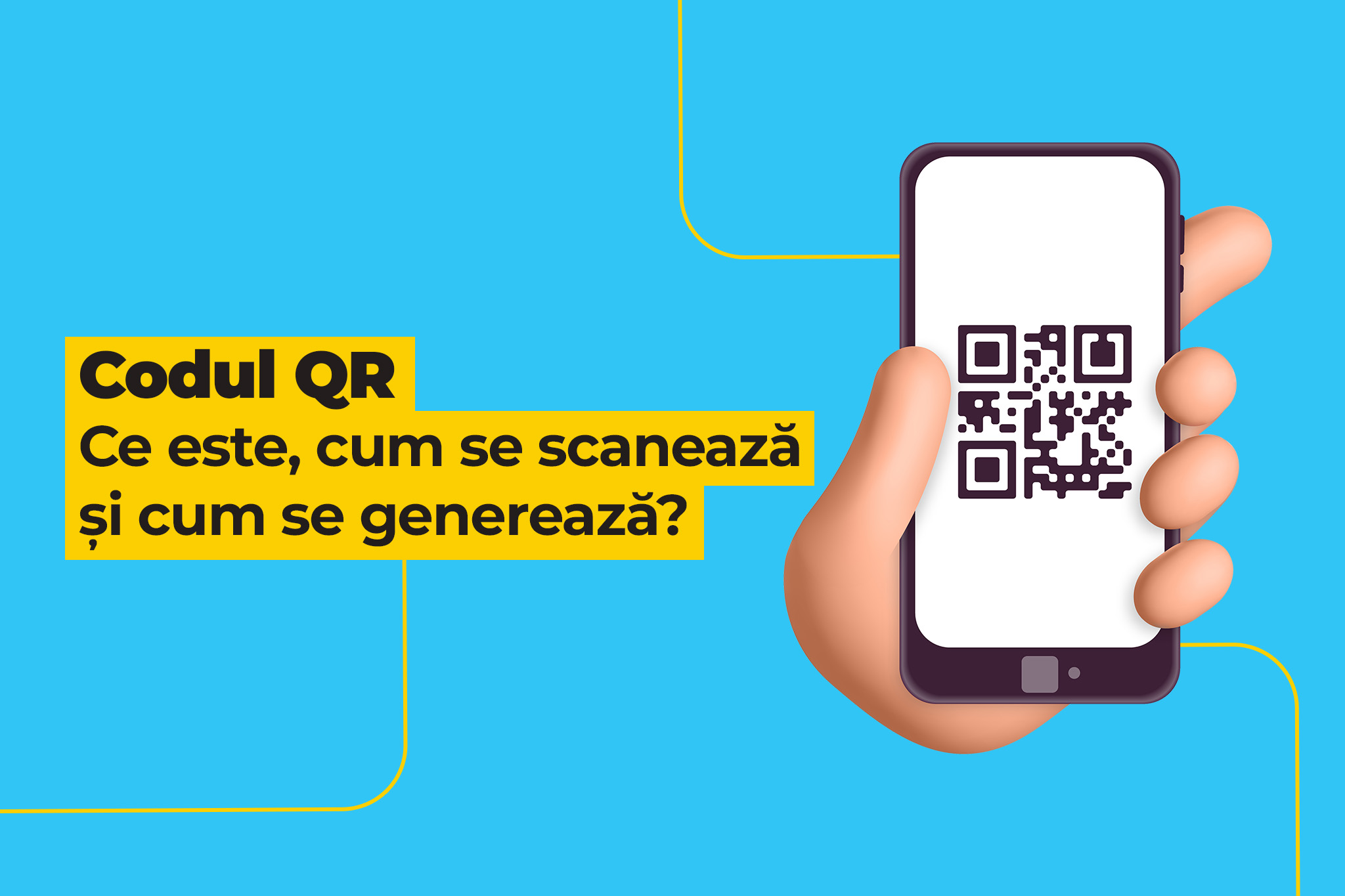
If you’ve ever come across a QR code on a product box, a poster, or a business card, but it’s not clear what’s wrong with it, this article is for you.
QR codes are all around us, especially since we are increasingly using the phone for payments, scans or quick access to information. Let’s see what these codes are, how they are used and how you can create your own QR code.
What is a QR code?
The QR code comes from “Quick Response Code” or, in translation, fast-response code. It is a modern variant of the barcode, which can be scanned very easily with the help of the camera on the phone. The main difference is that, unlike a classic barcode (only read horizontally), a QR code can also be read vertically, which together with its square shape allows storing a larger amount of information.
The QR code was invented in 1994 by a Japanese company called Denso Wave, a Toyota subsidiary. Initially it was used to track auto parts in factories, but over time it has expanded into many other areas.
What are QR codes used for?
QR codes can contain a lot of information, and their usefulness is extremely varied. Here are some examples:
- Links to websites or apps
- Contact details (Telephone, email, address)
- URLs for connecting to Wi-Fi networks
- Payment details (ex. IBAN, bank codes)
- Details for quick account logging
- Locations on Google Maps
- Predefined messages or commands
For example, on klap.ro you can find QR codes in some informative materials or emails, which send you directly to products or special offers.
How do you scan a QR code on your phone?

On Android:
Most modern Android phones (Samsung, Xiaomi, Huawei, etc.) have QR scanner integrated into the camera application. Simple steps:
- Open the Camera app.
- Point the camera at the QR code.
- A pop-up with the related action (usually opening a link) automatically appears.
In some models, the function must be enabled from the camera settings or through the control center.
On iPhone:
- Open the Camera app.
- Point the camera at the QR code.
- You will receive a notification with the option to open the link.
If it does not work automatically, check that the “Scan QR Codes” option is enabled in Settings > Camera.
Other alternatives:
If your phone doesn’t have the built-in feature, you can use free apps from Google Play or the App Store, such as:
- QR & Barcode Scanner (Android)
- QR Code Reader (iOS)
How do you generate a QR code?
You might want to send friends a quick invitation, connect customers to Wi-Fi, or create a code for your digital business card. Here’s how you can do that:
- Go to a site like qr-code-generator.com or www.qrstuff.com.
- Choose the type of information: link, text, contact, Wi-Fi, location, etc.
- Enter the desired data.
- Press “Generate QR code”.
- Save the image and share it.
It is completely free and works on any device.
QR codes are part of everyday digital life. They are quick, useful and can be used in the most creative ways. Whether it’s an online payment, a Wi-Fi connection or a simple link to a product page, a QR code saves you time.
Let’s do a short exercise. Based on the above, try scanning the following QR code:
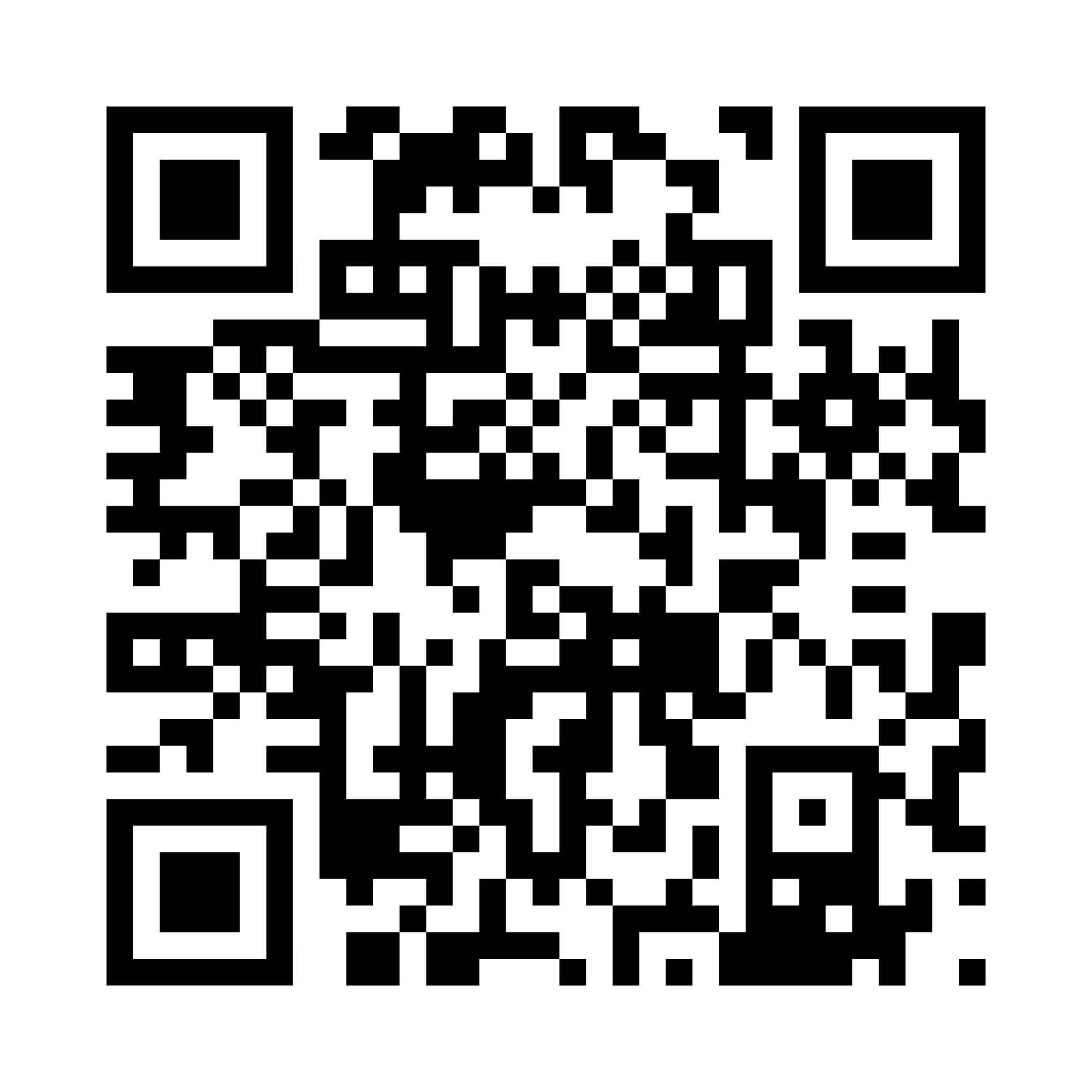
If you arrived on our website klap.ro, it means that you learned how to scan a QR code — now you can discover our offer of refurbished phones.
QR code types: static vs. dynamic
There are two main types of QR code: static and dynamic, and the choice between them depends on the purpose for which you use it.
A static QR code contains the information directly in the code. Once generated, the content can no longer be changed. For example, if you created a QR code for a link and then you change the page, you will need to generate a new code. This type is suitable for permanent information and is common in cases of free QR code scanning.
A dynamic QR code works differently: the code sends to an intermediate link, and the final destination can be changed at any time. This way, you can update the content without changing the printed code. In addition, dynamic codes allow the collection of data such as the number of scans, device type or approximate location. They are ideal for campaigns, promotional materials or situations where you want to optimize the QR code scanning experience with your mobile phone.
Personalization and branding for QR codes
A QR code doesn’t have to be just black and white. Customizing it can increase the scanning rate and better integrate it into your brand’s visual identity.
You can modify:
- colors (keeping strong contrast between background and code)
- the shape of the corners or internal elements,
- adding a logo to the center.
It is important that personalization does not affect readability. A QR code scanner or QR code reader must be able to recognize the instant code regardless of the device. Therefore, it is recommended to test the code on several phones before publishing.
A well-branded QR code, accompanied by a clear prompt like „Scan QR code for details”, more easily attracts attention and gives confidence to the user.
Security: how to check a QR code before opening the link
Although QR codes are extremely useful, they can also be used for redirects to unsafe pages. That is why it is important to know how to check a code before interacting with it.
Many QR reader or QR code reader applications display the full link before opening it. Check if the domain is known and avoid strange or very short addresses. If a code asks for your personal data immediately after scanning, treat the situation with caution.
On Android, some QR code scanning features include link preview options. It is recommended to use updated applications and avoid scanning QR codes from unknown sources, especially in public spaces.
What to do when QR code is not scanned (fast diagnosis)
If you’re trying to scan a code and it doesn’t work, the problem isn’t always the phone. There are several factors that can influence the QR code scanning process.
Here are a few things to check:
- lighting: shadows or reflections can prevent correct reading;
- image clarity: a pixelated or printed code in low resolution will be hard to read;
- size: too small code will not be recognized by the room;
- contrast: close colors reduce the chances of success.
If you’re wondering how I scan a QR code that seems impossible to read, try another angle, a different distance, or another QR code scan application. In many cases, a simple QR code reader exchange resolves the problem.
Frequently asked questions about QR code:
How can I scan a QR code if my phone is older or does not automatically recognize codes?
If the feature is not integrated, use a QR code reader from the app store (e.g.: QR Code Reader, Google Lens). Alternatively: take a photo/screenshot, open the Google Lens app or an online decoder that allows uploading the image — so you can get the link even without live scanning. (keyword: qr code reader, scan qr code with your mobile phone)
What is a dynamic QR code and why should I choose it?
A dynamic QR code redirects through an intermediate link, which allows you to change the destination after you have printed it and collect statistics about scans. It is useful for campaigns, temporary offers or when you want free qr code scanning for testing, then upgrade to advanced features.
How do I quickly check if a QR code is secure before I open the link?
Use a scanner that displays the full URL before opening the page, checks the domain (not to be suspicious), and avoids entering sensitive data if the page looks unusual. You can copy the URL from the preview and check it with a URL scanning service or open it in a browser in incognito/strict mode.
What is the minimum recommended size to scan the QR code on a printed material?
As a practical rule: for scanning close (eg business card) use at least ~2–2.5 cm side; for flyers 3–4 cm; for posters or banners that scan remotely, increase to 8–12 cm. Choose higher correction level if you plan to add logo or be exposed to damage.
Can I track how many people have scanned the QR code and where they come from?
Yes — with dynamic QR codes and links with UTM parameters can track scans in Google Analytics or in the QR code provider’s dashboard. So you can see how many scans, approximate locations and devices used (useful for SEO optimization and campaigns).