


Every search, every website visited and every moment spent online is recorded by the browser you use. Why? For experience personalization and, of course, for marketing purposes. Fortunately, if you want to delete your browsing history or your Google searches, you can do it very easily. Here’s how.
How to Delete Browsing History on Android: Google Chrome?
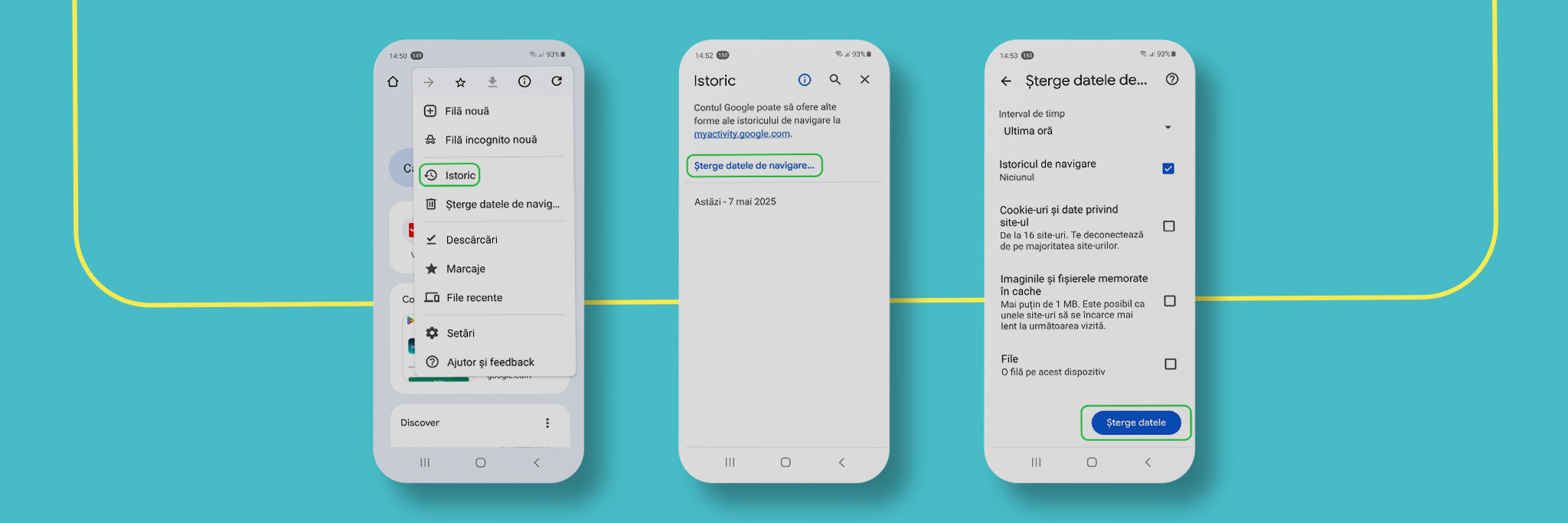
If you use Google Chrome on an Android phone, follow the steps below:
- Open the Google Chrome app.
- Tap the three vertical dots in the top-right corner.
- Select History.
- Choose Clear browsing data.
- Tick Browsing History.
- Choose the desired time range: last hour, last 24 hours, last 7 days, last 4 weeks or all time.
- Tap Clear data to confirm.
Want to Delete the Activity Saved by Google Too?
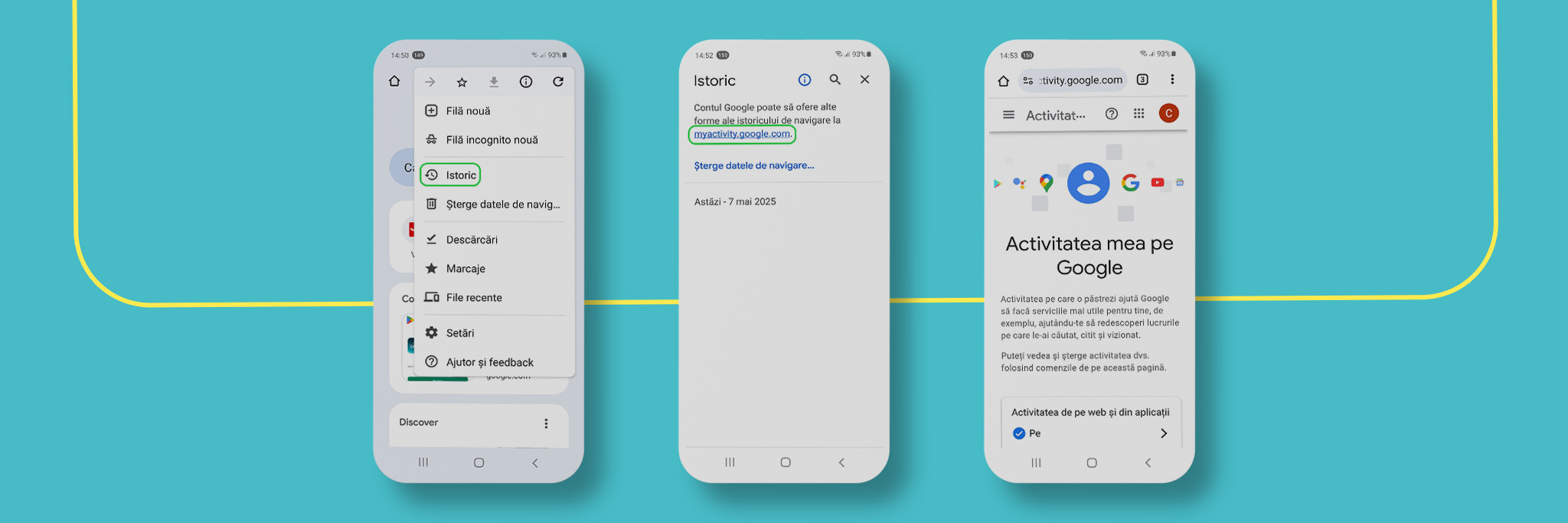
-
From the menu above, you can access My Google Activity.
-
There, you can also select Search History, meaning the history of searches made on Google.
Everything you delete will be removed from all devices where you are logged in with that Google account.
How to Delete Browsing History on iPhone / iOS: Safari
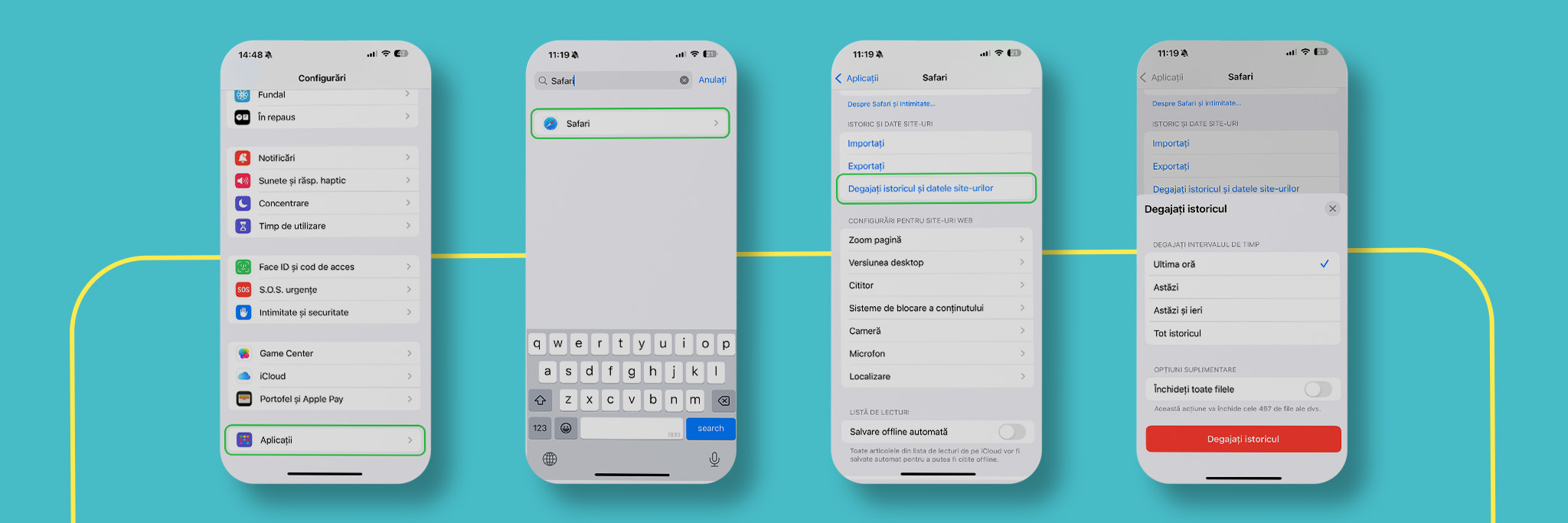
If you use an iPhone and browse with Safari:
- Go to the Settings app.
- Scroll down and select Safari.
- Tap Clear History and Website Data.
- Confirm your choice by tapping Clear History and Data again.
This option will delete your browsing history, cookies and other data stored in Safari.
Why Is It Good to Delete Your History from Time to Time?
-
You protect your privacy, especially on shared devices.
-
You remove browsing traces that can influence the ads and suggestions you receive.
-
Your browser may work faster and more efficiently.
Deleting your browsing history is a simple but essential step for a safer and faster digital experience, both on Android and iOS.
What Is the Difference Between Browsing History and Google Activity Data?
Browsing history refers to the websites you have visited using a browser, such as Google Chrome, and is saved locally on your device. It can be deleted directly from the browser and is not necessarily connected to your Google account.
Google Activity data, also known as My Activity, refers to information saved in your Google account, such as searches made on Google, videos watched on YouTube, locations visited if you have enabled location history, apps used and more. This data is stored online and can be accessed or deleted from the myactivity.google.com page.
In short:
- Browsing history = local data from your browser.
- Google Activity = online data stored in your Google account.
Tips for Protecting Your Online Privacy
Use Incognito or Private mode — Browsing in incognito mode does not save local browsing history, cookies or temporary data.
Delete your history and activity data regularly — Set up automatic deletion for your Google account activity and regularly clear your browser cache and cookies.
Review app and extension permissions — Check which apps or extensions have access to your data and remove those you do not use or that seem suspicious.
Enable two-factor authentication, 2FA — Protect your online accounts, including your Google account, with an extra layer of security.
Use a VPN when browsing on public Wi-Fi networks — A VPN hides your IP address and encrypts your data traffic, protecting your online activity.
Disable location history if it is not necessary — Go to your Google account settings and manage what types of activity are saved.
Be careful with the websites you visit — Avoid entering personal data on unsafe websites. Check whether they have “https” in the address.