

You saved your passwords on your phone and now you don’t know where to find them? You’re not the only one. Whether you’re using an Android or an iPhone, passwords can be stored automatically, and accessing them is easier than it seems. In this guide we show you step by step how you can see the passwords saved in your phone, but also how to organize them better. Let’s get started!
How to view passwords saved on an Android phone
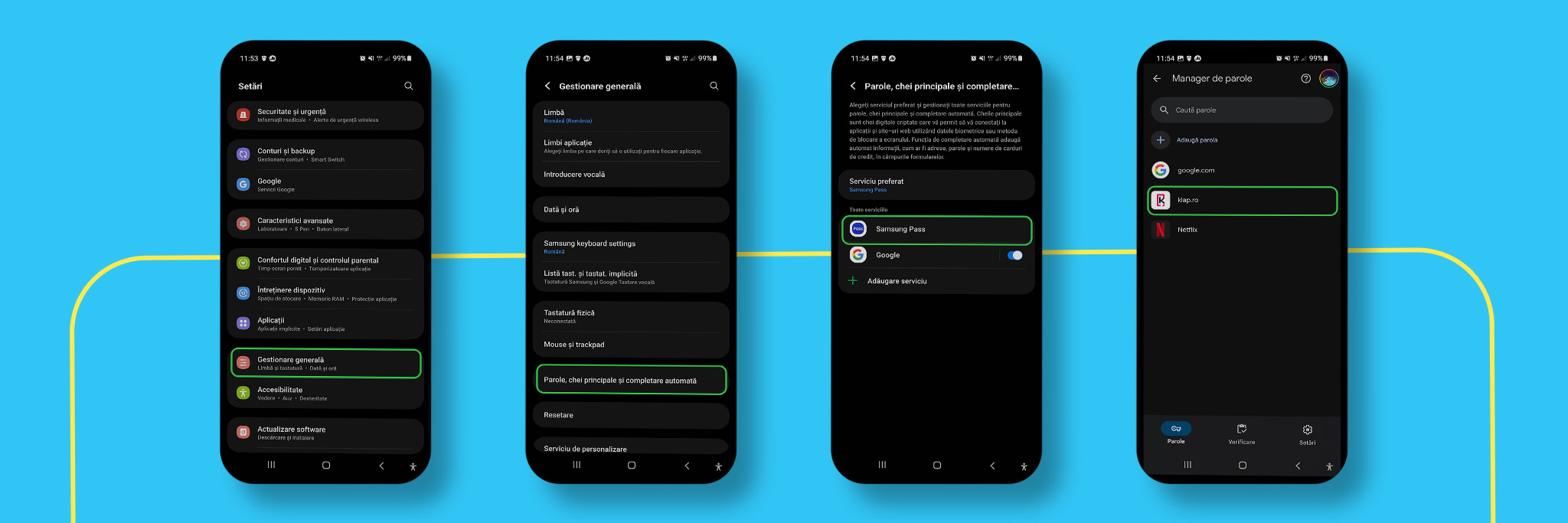
The steps may vary slightly depending on the phone model, but generally:
- Go to Settings.
- Search for Google or General Management.
- Choose Passwords and autocomplete.
- Select password manager – Google or Samsung Pass.
- You’ll see a list of saved passwords. You can press any to view them (you will be asked for confirmation by password, fingerprint or Face ID).
In Google Chrome:
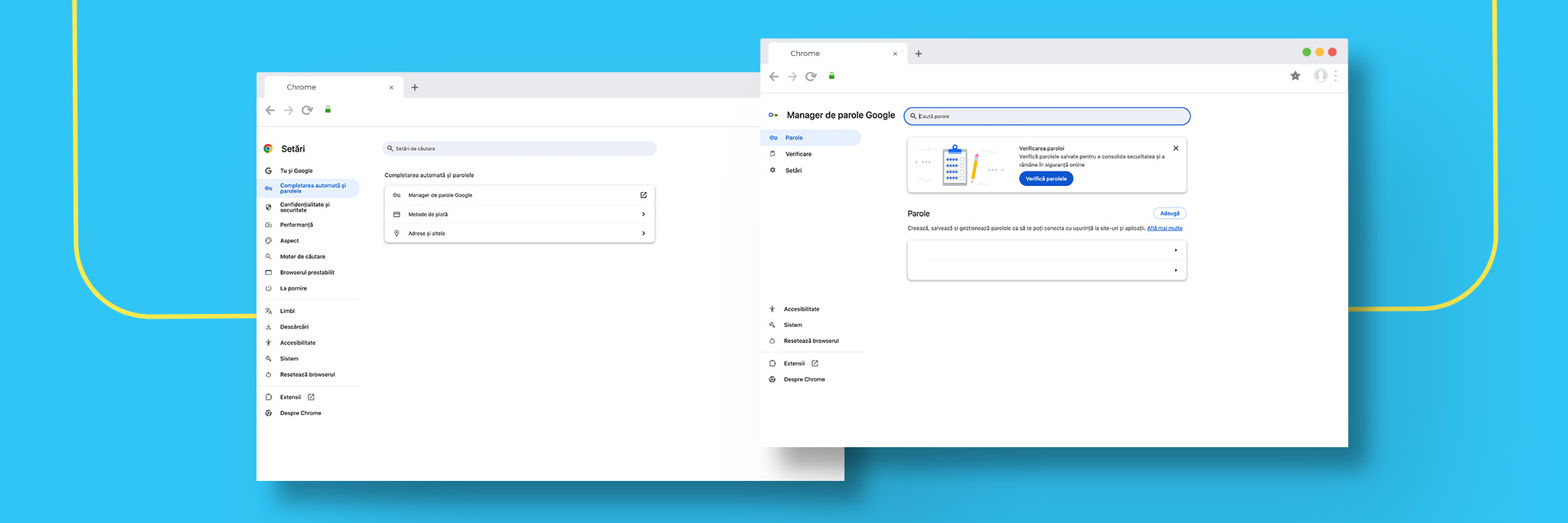
- Open the Google Chrome app.
- Press the three points on the top right.
- Go to Settings → Password Manager.
- Here you will see all the passwords saved by Chrome.
How to view passwords saved on an iPhone:

- Go to Settings.
- Go to the Passwords section.
- Confirm your identity (Face ID, Touch ID or code).
- Choose the site or app from the list to see the saved password.
How to view passwords saved on a laptop (Mac and Windows):
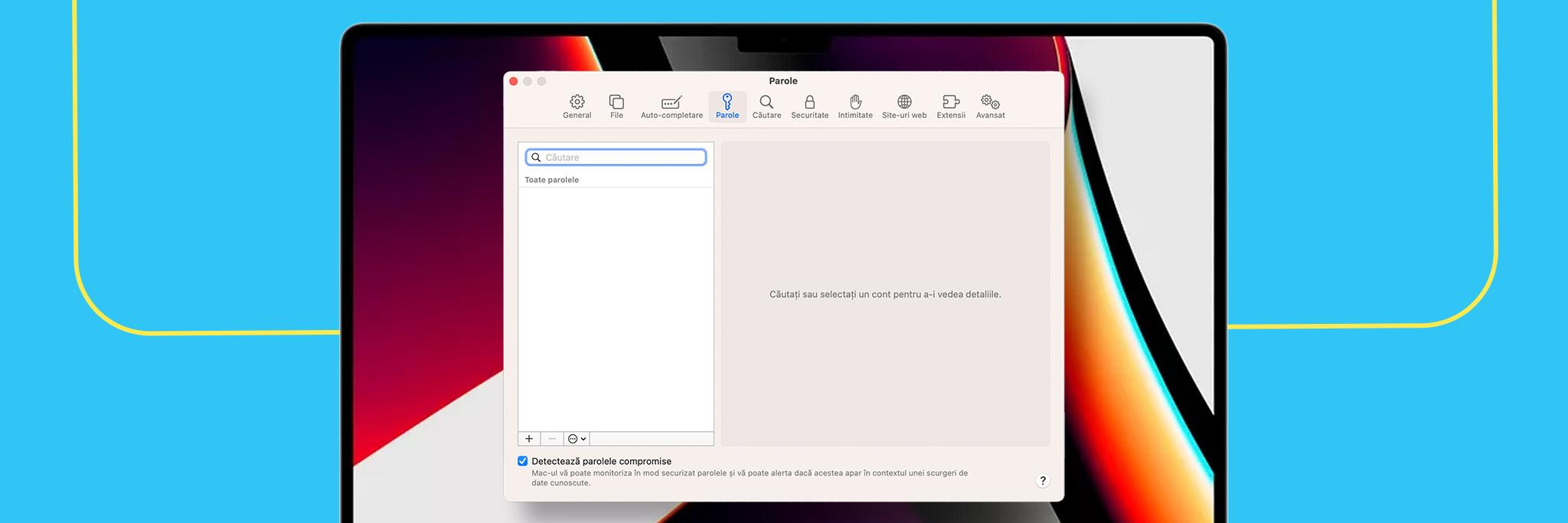
- On Mac:
- Go to System Settings → Passwords.
- Sign in, then you can access the full list.
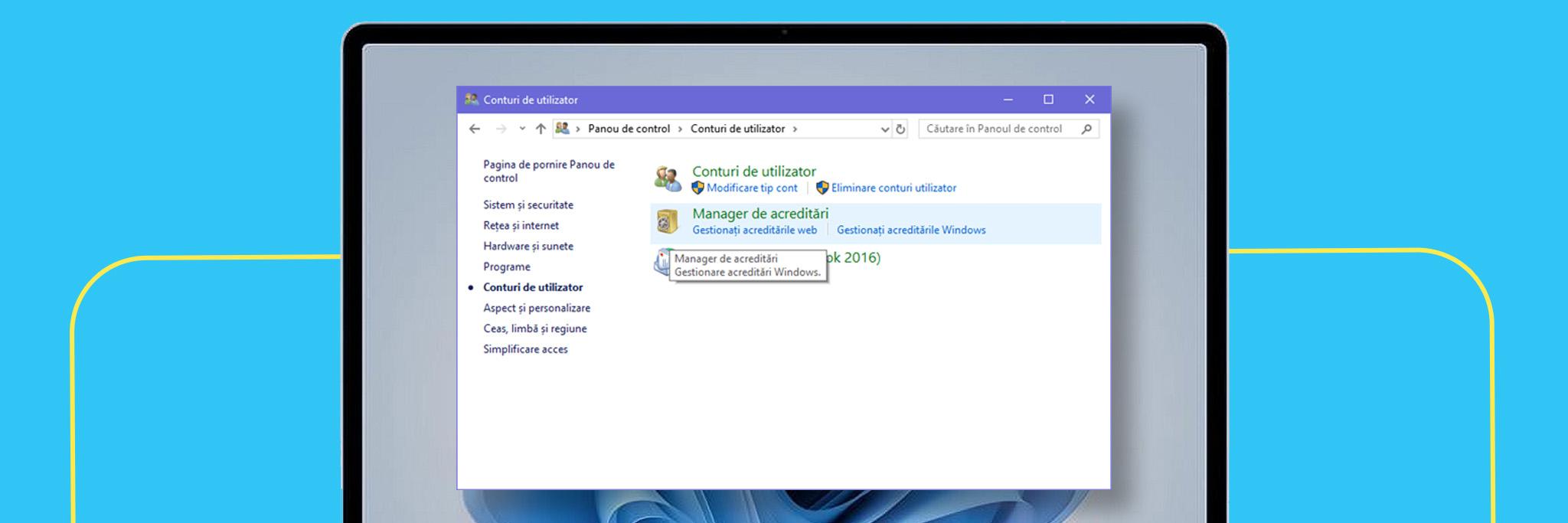
- On Windows:
- Entrer in Control Panel → User Accounts → Credential Manager.
- Here you will find Web Credentials and Windows Credentials.
- Select what you are interested in and click to see the details (you will need your PC password).
Where can the saved passwords be? In web browsers
Besides Google Chrome, if you use Firefox or Safari, the steps are similar:
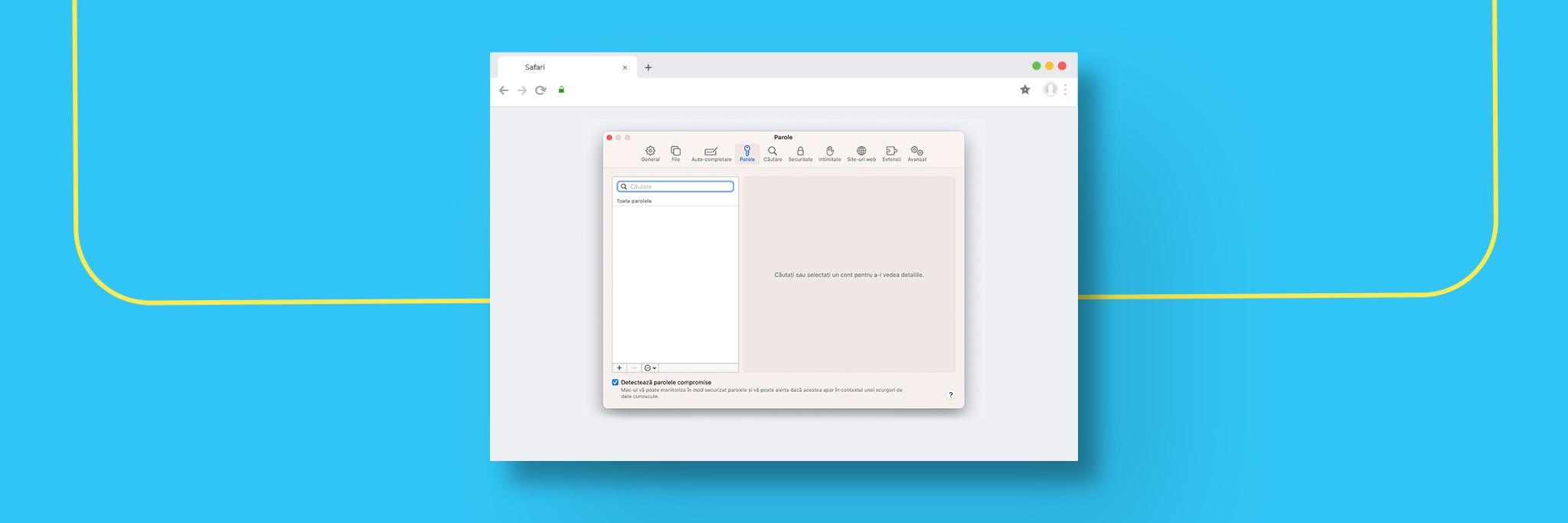
- Safari: Settings → Passwords (authentication) → Select the desired site.
- Firefox: Menu → Settings → Privacy → Saved logins.
What is a password manager and why is it useful?
A password manager saves and protects all your login data in one secure place. With it:
- You no longer need to remember dozens of passwords.
- You can generate strong passwords automatically.
- You have easy and safe access from any device.
Among the most popular: NordPass, Bitdefender Password Manager, 1Password or Dashlane.
No matter what phone you use, you now have all the information you need to quickly access your saved passwords. At Klap we make sure that the technology becomes easier for you to use.
Frequently asked questions about passwords saved in your phone:
Is it safe to have many passwords saved in your phone?
Yes, it is generally safe because both Android (via Google Manager) and iPhone (via iCloud Keychain) use advanced encryption. However, the security of these saved passwords depends on the method of blocking your screen. If someone finds your phone’s unlock code, they might also have access to the list of passwords saved in your phone. We recommend using biometric authentication (fingerprint or Face ID).
What do I do if I accidentally delete a saved password?
If you use Google Password Manager, you can sometimes check the Google account trash on a desktop, but most of the time, once deleted, these passwords saved in your phone are permanently removed to comply with the safety rules. Our advice is to always have a recovery method (email or phone) set for important accounts.
Can I transfer these saved passwords to my phone to a new device?
Absolutely. If you switch from one Android to another, you just need to log in with the same Google account. If you switch from iPhone to Android (or vice versa), the process is a little more complex and involves exporting a list of saved passwords to a file.CSV from a computer, which you then import into the new manager.
Why don’t all my accounts appear in the list of passwords saved in your phone?
There are two main reasons: either you chose the “Never save” option (Never save) when the browser first asked you, or the respective application (eg some banking applications) prohibits the storage of saved passwords for strict security reasons. You can manually check the “Autofill” (Autofill) settings to ensure that the function is active.
How can I quickly delete all those passwords saved in my phone that I no longer use?
Both on iOS and Android, you can enter the password management menu and use the “Edit” function (Edit) or the trash icon. It is recommended to clean regularly in the list of saved passwords to avoid confusion between old and new accounts.